
Home > Products > Concert Brass 2
Free DemoSee Full ManualOverview Key Features, Sections and Articulations TVEC 3 Programming FeaturesFAQ and TipsSystem Requirements
See below for more information


OVERVIEW
Concert Brass 2, the newest of all Kirk Hunter Studios' brass packages gives you 4 brass libraries in one. Coupled with innovative and progressive TVEC 3 programming for Kontakt, you will not find a more flexible and playable great sounding brass library! And with SmartLegato2®, you will be able play chords in legato mode even while changing articulations! With these new brass sections, you can call up anything from a huge "Hollywood" film sound, to an intimate brass chorale or solo or anything in between! Musical expression was key in recording these new sections. You'll be able to get big bombastic fanfares, easy to control crescendos or "spooky" and dark backgrounds. The range of programming variety you get is limitless. All of these new sections were sampled in a space large enough to get the "sweet spot" for brass, yet not so ambient that you're stuck with a mushy sound. This way you can choose your own style of ambience without conflicts.
16GB


KEY FEATURES:

Sections, Instruments and Articulations
Symphonic Brass
(Whole Divisions)

French Horns (8)
Trombones (8)
Trumpets (8)

Articulations
-Smooth Sustain
-Accent pp Sustain
-Accent mf Sustain
-Accent ff Sustain
-Adagio Sustain
(All sustains have
5 dynamic layers.)
-Tight Staccato
-Loose Staccato
-Flutter
-Initervals (Accessed
using IntervaLive®)
-Rips (Accessed
Using QuickRip)
Studio Brass
(Half Divisions)

French Horns (4)
Trombones (4)
Trumpets (4)

Articulations
-Smooth Sustain
-Accent pp Sustain
-Accent mf Sustain
-Accent ff Sustain
-Adagio Sustain
(All sustains have
5 dynamic layers.)
-Tight Staccato
-Loose Staccato
-Flutter
-Initervals (Accessed
using IntervaLive®)
-Rips (Accessed
Using QuickRip)
Chamber Brass
(Quarter Divisions)

French Horns (2)
Trombones (2)
Trumpets (2)

Articulations
-Smooth Sustain
-Accent pp Sustain
-Accent mf Sustain
-Accent ff Sustain
-Adagio Sustain
(All sustains have
5 dynamic layers.)
-Tight Staccato
-Loose Staccato
-Flutter
-Initervals (Accessed
using IntervaLive®)
-Rips (Accessed
Using QuickRip)
Solo Brass (Solo Divisions)

French Horn
Trombone
Trumpet
Tuba*

Articulations
-Smooth Sustain
-Accent pp Sustain
-Accent mf Sustain
-Accent ff Sustain
-Adagio Sustain
(All sustains have
5 dynamic layers.)
-Tight Staccato
-Loose Staccato
-Flutter
-Initervals (Accessed
using IntervaLive®)
-Rips (Accessed
Using QuickRip)

*Solo Tuba is the same as what is included in Diamond. QuickRip is not included for solo tuba.
Includes "Quad" Instruments
(All Divisions in 1 Instrument)

Symphonic
Studio
Chamber
Solo

Sections, Instruments and Articulations (Stopped [with mutes])
Symphonic Brass
(Whole Divisions)

French Horns (8)
Trombones (8)
Trumpets (8)

Articulations
-Smooth Sustain
-Accent pp Sustain
-Accent mf Sustain
-Accent ff Sustain
-Adagio Sustain
(All sustains have
5 dynamic layers.)
-Tight Staccato
-Loose Staccato
-Flutter
-Initervals (Accessed
using IntervaLive®)
-Rips (Accessed
Using QuickRip)
Studio Brass
(Half Divisions)

French Horns (4)
Trombones (4)
Trumpets (4)

Articulations
-Smooth Sustain
-Accent pp Sustain
-Accent mf Sustain
-Accent ff Sustain
-Adagio Sustain
(All sustains have
5 dynamic layers.)
-Tight Staccato
-Loose Staccato
-Flutter
-Initervals (Accessed
using IntervaLive®)
-Rips (Accessed
Using QuickRip)
Chamber Brass
(Quarter Divisions)

French Horns (2)
Trombones (2)
Trumpets (2)

Articulations
-Smooth Sustain
-Accent pp Sustain
-Accent mf Sustain
-Accent ff Sustain
-Adagio Sustain
(All sustains have
5 dynamic layers.)
-Tight Staccato
-Loose Staccato
-Flutter
-Initervals (Accessed
using IntervaLive®)
-Rips (Accessed
Using QuickRip)
Includes "Quad" Instruments
(All Divisions in 1 Instrument)

Symphonic
Studio
Chamber
Solo (trumpet, trombone only)

TVEC 3 PROGRAMMING FEATURES
SmartLegato® - Polyphonic legato
IntervaLive® - When engaged, real intervals are performed when you play overlapping notes. You can fully customize IntervaLive®
DivisiLive® - Automatically divides sections if you play chords
Division Mixing - Setup custom mixes of different sections (divisions) all on the same instrument.
Division Panning - Setup custom panning of different sections (divisions) all on the same instrument.
Quick-Rip - Keyswitch a section rip, or use the pitch wheel.
Polyphonic Round Robin - Even playing chords will engage a true Round Robin. And randomization insures killing the "machine gun" sound.
Sus Pedal Slur and Extend - Conventional sustain pedal behavior,OR you can extend repeated notes, or slur overlapped notes to get a very realistic sound.
Double and Triple Tonguing - When you can't play a fast repeated note quickly enough, choose "Double Tongue" or "Triple Tongue".
Programmable Keyswitching - Don't like where the keyswitches are? Program your own. You can also turn keyswitching on or off altogether.
Short Note FX - Create fun "falls" or "scoops" for the shorter note articulations.
Modwheel Vibrato for Solos - You can choose to add vibrato with the modwheel.
Every feature is now automatable from the main page.


TIPS - Back to Top of Page
Concert Brass 2 Tips

I really like the smooth articulation. But can I have some staccato attack when I play loud or more aggressively?
Yes. Choose any of the Accented articulations, and then raise the value of the AttkSens knob to about 5 or greater. Now, when you play more aggressively, you'll hear a sharp staccato. And of course, you can change the style of staccato to "loose" or "tight" instantly via automation or keyswitching.

I want to play polyphonically without the true legato feature offered by SmartLegato®.
Simply turn off SmartLegato® by clicking the SmartLegato® button on the front of the GUI, and you will be able to play in full polyphony. You should note that SmartLegato® is very flexible in that it allows you to play chords while still getting the benefits of true legato technology.

I'd rather not hear the true intervals offered with IntervaLive®.
Simply turn off IntervaLive® by clicking the IntervaLive® button on the front of the GUI, and you will be able to play in full polyphony. By default, IntervaLive® is also engaged/disengaged by keyswitching at C1.

I want to be able to play faster during legato.
1. Choose Settings > •Set IntervaLive® features for when you play overlapping notes. When on, you will hear true intervals between overlapped notes.
2. Set the "int Space" knob to low values. -100 plays with hardly any interval heard. +100 is good for very slow, lush phrases.

I don't want to hear intervals between smaller intervals such as half or whole steps.
1. Choose Settings > •Set IntervaLive® features for when you play overlapping notes. When on, you will hear true intervals between overlapped notes.
2. Choose "Constrain intervals to perfect 4th or larger." Or you can constrain the intervals to any size you wish.

I want to hear the intervals, but only when ascending.
1. Choose Settings > •Set IntervaLive® features for when you play overlapping notes. When on, you will hear true intervals between overlapped notes.
2. Choose "Up-Only"

I want to hear the intervals, but only when descending.
1. Choose Settings > •Set IntervaLive® features for when you play overlapping notes. When on, you will hear true intervals between overlapped notes.
2. Choose "Down-Only"

I want to hear the intervals, both ascending and descending.
1. Choose Settings > •Set IntervaLive® features for when you play overlapping notes. When on, you will hear true intervals between overlapped notes.
2. Choose "Up_And_Down"

The sound of the intervals is too loud.
1. Choose Settings > •Set IntervaLive® features for when you play overlapping notes. When on, you will hear true intervals between overlapped notes.
2. Set the +/-Vol knob to control the volume of the intervals.

I don't want to hear the intervals if I'm playing very fast.
1. Choose Settings > •Set IntervaLive® features for when you play overlapping notes. When on, you will hear true intervals between overlapped notes.
2. Set the Time Sens knob. Raising the value of this knob actually LOWERS the threshold of time sensitivity. So if you were to raise the value of this knob all the way, you would hear the intervals only when you play very very slowly. Lowering it all the way would cause you to hear intervals no matter how fast you play.

Normally, when I'm using SmartLegato®, and IntervaLive® is on, the sound seems to have a nice, "tongued" effect. If this is true, can I also get a slur if I so choose?
Yes. To do this, just hold down the sustain pedal during your performance. By default, the sustain pedal is set to slur notes during IntervaLive®.

When I use the sustain pedal, I see that the GUI shows "Slurring…" when I'm playing intervals. But sometimes, I see the GUI show "Extending…". What does this mean?
By default, not only will the sustain pedal slur legato notes, but it will also extend notes that are repeated. This way you can get a really effective and smooth musical phrase that is consistent with the legato.

What if I want to use the sustain pedal conventionally, and just hold the notes I play?
1. Choose Settings > •Set SmartLegato® and Sustain Pedal features.
2. Set the Overlap knob all the way up to 2200. Now, the sustain pedal will behave conventionally.

When I'm using the Smooth articulation, and playing legato, it sounds ok. But when I change to any of the Accented articulations, the attack is too slow.
1. Choose Settings > •Set SmartLegato® Attack.
2. If you set the value of the LegAttk knob down to 0, then the attack of the accented articulations will be just as strong even when you play legato. (Of course this also depends on the setting you chose for the AttkSens knob.) If you raise the value a little, then the attack of the AccentFF articulation will match that of the Smooth articulation when you play legato. This will also be true of the AccentMF and AccentPP articulations. However, as you raise the LegAttk value, the attacks for the AccentMF and AccentPP articulations will get slower and slower until they match that of the AccentFF articulation.

When I choose QuickRip, I don't hear anything.
You need to have first played a note that is lower than the note you are trying to engage the rip on. After that you can engage the QuickRip. Additionally, you can play the QuickRip repeatedly at this point. By default, QuickRip is also engaged/disengaged by keyswitching at B0.

The rips are not loud enough.
1. Choose Settings > •Set Rip Levels
2. Set the volume of the rips with the Rips Level knob.

I want to have only the modwheel control the volume.
1. Choose Settings > •Set velocity volume, modwheel volume, velocity dynamics and modwheel dynamics.
2. Set Vel Vol to 0.
3. Set Modwhl Vol to anything greater than 0. The higher this value the more range of modwheel control over volume.
Note that volume is different than dynamics. See "I want to have only the modwheel control the dynamic layers." below.

I want to have only velocity control the volume.
1. Choose Settings > •Set velocity volume, modwheel volume, velocity dynamics and modwheel dynamics.
2. Set Modwhl Vol to 0.
3. Set Vel Vol to anything greater than 0. The higher this value the more range of velocity control over volume.
Note that volume is different than dynamics. See "I want to have only velocity control the dynamic layers." below.

I want to have both velocity and the modwheel control the volume.
1. Choose Settings > •Set velocity volume, modwheel volume, velocity dynamics and modwheel dynamics.
2. Set Modwhl Vol to anything greater than 0. The higher this value the more range of modwheel control over volume.
3. Set Vel Vol to anything greater than 0. The higher this value the more range of velocity control over volume.
Note that volume is different than dynamics. See "I want to have both velocity and the modwheel control the dynamic layers." below.

I want to have only the modwheel control the dynamic layers.
There is a small drop-down menu on the front of the GUI that is, by default, set to "Mod+VelDyn". With this menu, you can control crossfading from one dynamic layer to the next.
From this menu, choose "Mod Dyn".

I want to have only velocity control the dynamic layers. With this menu, you can control crossfading from one dynamic layer to the next.
There is a small drop-down menu on the front of the GUI that is, by default, set to "Mod+VelDyn".
From this menu, choose "Vel Dyn".

I want to have both velocity and the modwheel control the dynamic layers. With this menu, you can control crossfading from one dynamic layer to the next.
There is a small drop-down menu on the front of the GUI that is, by default, set to "Mod+VelDyn".
Make sure that this menu is set to "Mod+VelDyn".

Do you offer modwheel vibrato for the solos?
Yes.
Click "Mod Vib for Solo" on the front of the GUI. Now, when you play the solo division, you will add vibrato via the modwheel. However, you should note that you will also hear other settings via the modwheel depending on your modwheel settings such as modwheel volume or modwheel brightness, etc.

I clicked "Dbl Tongue", and "Trpl Tongue" which I assume mean "double-tongue" and "triple-tongue" respectively. When I play, I am not sure of what I am hearing.
Double and Triple Tongue features operate on release notes. So you will likely have to practice a bit to get the "feel" of how they work. Also, you should choose an accented articulation such as AccentMF.

I chose "Short FX", but don't hear anything unusual? Should I? Also, I see a little button slightly overlapping the "Short FX" button? What's that?
You need to have chosen the "Short" articulation to hear the effect. This is just a simple "fall" or "scoop" effect for certain special types of musical phrases. The little overlapping button tells the effect to either "fall" from, or "scoop" to the note you play.

I've loaded 2 TVEC 3 instruments in a multi, and have assigned both to the same MIDI channel. This is because I want to play both of the instruments at the same time. However, in terms of adding a slight delay, I'd like to offset one of the instruments from the other so as to create a more "human" sounding performance. Can I do this?
Yes.
1. Choose Settings > •Set Instrument Delay Amount.
2. Set the Delay knob. Higher values result in more of a delay of the instrument's performance. Additionally, this delay, once set higher than 0, is slightly randomzed for even more realism.

I would like to assign my own keyswitch maps. Can I do this?
Yes.
1. Choose Settings > •Assign/View Keyswitch Notes. You will see a keyswitch map that shows the current settings. You will also see a drop-down menu from which you can choose exactly what feature, articulation or division (section) you would like to assign, along with the actual assignment.
2. From the feature's, articulation's, or division's assignment just choose a midi note number. As you do so, you will see that change reflected in the current keyswitch map. Please note that the assignments for staccato style, QuickRips, and IntervaLive® cannot be changed. However, you can turn all keyswitch off if you wish. See below, "I'm not a fan of keyswitching."
3. Click "Done_Assigning". If you have assigned more than one feature to the same key, you will get an error message prompting you to fix this. Until you have successfully assigned keyswitches, you will not be able to close the currently-showing windows. Once you are successful, you will see the keyswitch assignments conveniently displayed on each applicable feature's button (if keyswitcing is on). Alternately, you will see the keyswitch assignment vanish from display when you turn off keyswitching.

I'm not a fan of keyswitching. Can I dump the keyswitching altogether?
Yes.
Turn on or off keyswitching by clicking the "Keyswitching" button on the front of the GUI. You will see the keyswitch assignments conveniently displayed on each applicable feature's button if keyswitcing is on. Alternately, you will see the keyswitch assignment vanish from display when you turn off keyswitching.

I like being able to have all 4 section sizes loaded in one instrument. I also like that I can blend all of the sections together. But how do I mix the levels of the sections independently?
1. Choose Settings > •Set levels and panning of the different divisions (sections).
2. Set the level of any of the 4 sections with the knobs in the left column.

I like being able to have all 4 section sizes loaded in one instrument. I also like that I can blend all of the sections together. But can I change the panning of the sections independently?
Yes
1. Choose Settings > •Set levels and panning of the different divisions (sections).
2. Set the panning of any of the 4 sections with the knobs in the right column.

When I turn on DivisiLive® I don't hear a difference between when I play a 2-note chord or a 3 or 4-note chord.
DivisiLive® divides the currently-selected divsion (unless you chose the solo division) down to the next lowest division. So if you selected the Whole division and play a chord, you'll always get the Half division during those chords. Similarly, if you selected the Half division and play a chord, then you'll always get the Quarter division during chords. And of course, it follows that if you selected the Quarter division, then you'll always get the Solo division during chords.

I sometimes get a script warning of a wrong time parameter.
Research is being done to address this. However, this error does not cause any known performance issues.

DIVISIONS - Back to Top of Page
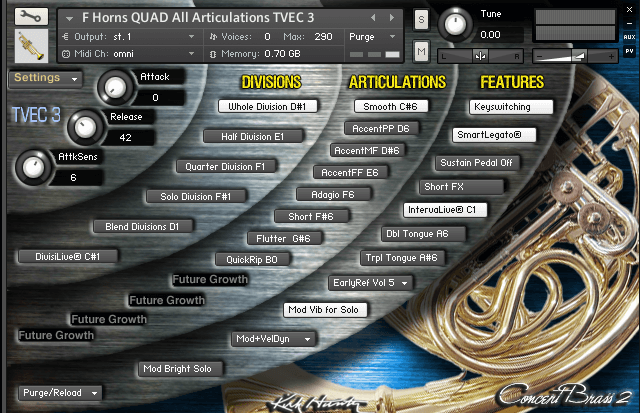
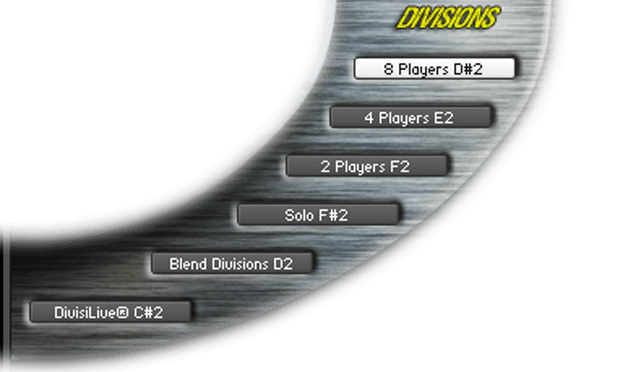
“Quad” instruments contain 4 different section sizes (divisions):
1 Whole - All available players
2 Half - Half of all available players
3 Quarter - Roughly one fourth of all available players
4 Solo
You can also choose to blend all divisions.
These switches enable you to select the division. You can also select the divisions using keyswitching, or automation.

DIVISILIVE® - Back to Top of Page
DivisiLive® divides the currently-selected divsion (unless you chose the solo division) down to the next lowest division. So if you selected the Whole division and play a chord, you'll always get the Half division during those chords. Similarly, if you selected the Half division and play a chord, then you'll always get the Quarter division during chords. And of course, it follows that if you selected the Quarter division, then you'll always get the Solo division during chords.

ARTICULATIONS - Back to Top of Page
Even though there are only 7 articulations listed, the fact is that with TVEC 3 programming, the actual amount of articulations you can get is virtually limitless. This is especially true when you want to get different kinds of staccato or swells, etc. As you become more familiar with how TVEC 3 works, you will realize just how flexible it is, and what a vast array of sounds you can get with it!

SUSTAINED ARTICULATIONS
• Smooth - Sustained with a rather smooth attack.
• Adagio - Sustained, very slow.

SUSTAINED ACCENTED ARTICULATIONS
• AccentPP - Sustained with a slight attack.
• AccentMF - Sustained with a moderate attack.
• AccentFF - Sustained with a loud attack.
Please note that the 3 Accent articulations above use varying amounts of attack which are controlled by the
“Accent Amount” knob and the "Attack Sensitivity" knob.
Choose the amount of accent with the "Accent Amount” knob.
Choose from 3 different accent styles with the "Accent and Short Note Style" knob that is shown whenever you choose an accented articulation.
1 Tight - Very crisp and short.
2 Loose - A more broad accent with less "bite" than "Tight".
3 Fat - Combines the "Tight" and "Loose" accents together for a "fat" and aggressive accent.

OTHER ARTICULATIONS
• Short - Short notes. The same as the 3 accented articulations above, but without the sustain.
• Flutter Tongue - The players "roll" their tongues while sustaining a note.
• Rips - The players "rip" up an octave . (Engaged by raising the pitch wheel, and then playing a note.)
• Intervals - Transitions between notes for added realism. (Engaged automatically when you have
the SmartLegato® and IntervaLive® features switched on.)

KEYSWITCHING - Back to Top of Page
1. Choose Settings > •Assign/View Keyswitch Notes. You will see a keyswitch map that shows the current settings. You will also see a drop-down menu from which you can choose exactly what feature, articulation or division (section) you would like to assign, along with the actual assignment.
2. From the feature's, articulation's, or division's assignment just choose a midi note number. As you do so, you will see that change reflected in the current keyswitch map. Please note that the assignments for staccato style, QuickRips, and IntervaLive® cannot be changed. However, you can turn all keyswitch off if you wish. See below, "I'm not a fan of keyswitching."
3. Click "Done_Assigning". If you have assigned more than one feature to the same key, you will get an error message prompting you to fix this. Until you have successfully assigned keyswitches, you will not be able to close the currently-showing windows. Once you are successful, you will see the keyswitch assignments conveniently displayed on each applicable feature's button (if keyswitcing is on). Alternately, you will see the keyswitch assignment vanish from display when you turn off keyswitching.

SMARTLEGATO® - Back to Top of Page
SmartLegato® performs true legato while enabling you to play chords. We were the first to accomplish polyphonic legato!

By default, not only will the sustain pedal slur legato notes, but it will also extend notes that are repeated. This way you can get a really effective and smooth musical phrase that is consistent with the legato.
If you want to use the sustain pedal conventionally, and just hold the notes:
1. Choose Settings > •Set SmartLegato® and Sustain Pedal features.
2. Set the Overlap knob all the way up to 2200. Now, the sustain pedal will behave conventionally.

INTERVALIVE® - Back to Top of Page
This is one of the features that makes the Concert Brass 2 library really come “alive”.

Brass Intervals Defined
For string instruments, fluidly (legato) moving to different notes only requires a change of bow angle or a different finger since these types of instruments are more or less “random access” where choosing their notes is concerned. Therefore, it’s rarely that there is a lot of audible sound that actually occurs between the 2 notes except for perhaps a bit of a leftover “ringing” from the first note. The exception is usually only during a left hand position change. For brass instruments, this is much different. This is because most of the features of brass instruments that make the note-change itself (such as the use of valves, slides, change of lip pressure, etc.) cause the entire body of the instrument to change. In addition to that, moving from note to note is not “random access” as is the case for strings or other instruments such as the piano. The player needs to “bridge the gap” between the notes unless the note is stopped first. Therefore, with brass, legato notes are most always associated with a certain amount of portamento whether intended or not.

IntervaLive® Using TVEC 3
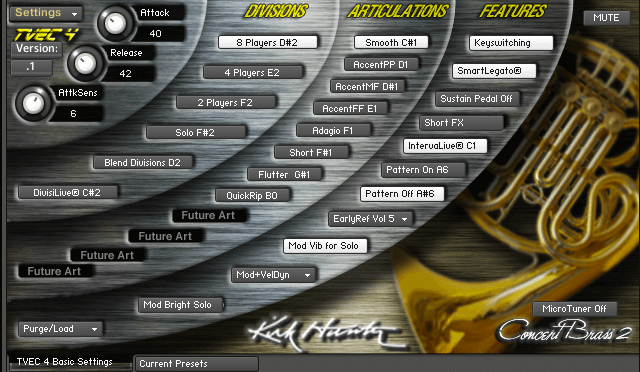
To simply add a synthesized portamento between notes never sounds human or desirable. However, TVEC 3 achieves realism by using actual recordings of intervals coupled with sophisticated programming. If you should overlap notes, (legato style performance) TVEC 3 will know the distance, whether up or down, between the notes you perform. Accordingly, TVEC 3 will play the correct interval between the performed notes. However, you may not wish to hear intervals on EVERY legato phrase you do. Therefore, there is a switch entitled "Intervalive® C1" at the lower-right of the interface. By turning this switch on or off, (either by keyswitching at C1 or using automation) you can tell TVEC 3 whether to play the interval or not. However, TVEC 3 does not stop there.
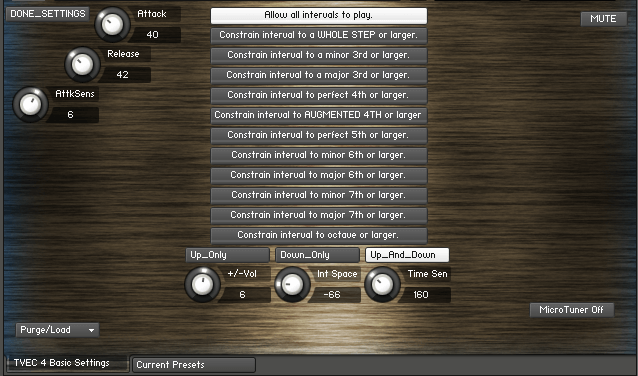
When you select IntervaLive® settings, you will see 12 switches occupying the center of the interface. These switches tell TVEC to only play intervals above a selected interval size. For example: Let's say that you only want to hear intervals when you perform larger intervals such as octaves or 5ths. Simply click "Constrain interval to perfect 5th or larger". Now, only intervals that are a perfect 5th in size or larger will be played by TVEC 3. And TVEC 3 does not stop there.
Toward the bottom-center of the interface, you will see 3 switches where you can tell TVEC 3 to constrain the intervals even more:
1 "Up_Only" - Only upward intervals are played.
2 "Down_Only" - Only downward intervals are played.
3 "Up_And_Down" - Intervals will be performed whether upward or downward.
But WAIT, there's MORE!
By this point, you might have noticed 3 knobs at the bottom-center of the interface. These knobs further control how TVEC 3 plays the intervals:
1 "+/-Vol" - Control the actual volume of the interval itself.
2 "Int Space" - Whenever TVEC 3 plays an interval, it obviously needs to create a certain amount of space between the 2 performed notes - usually more space for larger intervals, and less for smaller ones. If, during the performance, you find that there is too much "lag" or latency, you can decrease the space between the performed notes with this knob.
3 "Time Sens" - Perhaps when you play really fast phrases, you don't want to hear TVEC play any intervals. Therefore, we have created a feature that allows you to tell TVEC 3 to only play intervals during slower phrases. Setting this knob creates a time-threashold over which TVEC 3 will not play intervals. So if you only want to hear intervals when performing very slowly, then set the knob to a low value. If you like to hear intervals even during fairly fast phrases, then set this knob at a high value.

DOUBLE TONGUE - Back to Top of Page
You can achieve realistic double tonguing. Double-tonguing is triggered by the release of a note if you have activated this feature. (by either keyswitching or automation)

The speed of the double-tonguing is controlled by how long you take to release a note after you have played it. This way, you can take complete control of the effect.

TIP - For best results, use this feature with accented notes with the "Attack Sensitivity" knob set to a very low value.

TRIPLE TONGUE - Back to Top of Page
You can achieve realistic triple tonguing. Triple-tonguing is triggered by the release of a note if you have activated this feature. (by either keyswitching or automation) You will hear 2 notes played in succession after you release a note or chord.

The speed of the triple-tonguing is controlled by how long you take to release a note after you have played it. This way, you can take complete control of the effect.

TIP - For best results, use this feature with accented notes with the "Attack Sensitivity" knob set to a very low value.

Modwheel Vibrato for Solo
Click "Mod Vib for Solo" on the front of the GUI. Now, when you play the solo division, you will add vibrato via the modwheel. However, you should note that you will also hear other settings via the modwheel depending on your modwheel settings such as modwheel volume or modwheel brightness, etc.

MOD+VEL DYNAMICS - Back to Top of Page
You can control the dynamic layers in 3 ways:

-Choosing to have only the modwheel control the dynamic layers.
There is a small drop-down menu on the front of the GUI that is, by default, set to "Mod+VelDyn". With this menu, you can control crossfading from one dynamic layer to the next.
From this menu, choose "Mod Dyn".

-Choosing to have only velocity control the dynamic layers. With this menu, you can control crossfading from one dynamic layer to the next.
There is a small drop-down menu on the front of the GUI that is, by default, set to "Mod+VelDyn".
From this menu, choose "Vel Dyn".

-Choosing to have both velocity and the modwheel control the dynamic layers. With this menu, you can control crossfading from one dynamic layer to the next.
There is a small drop-down menu on the front of the GUI that is, by default, set to "Mod+VelDyn".
Make sure that this menu is set to "Mod+VelDyn".

MODWHEEL VIBRATO FOR SOLOS - Back to Top of Page
Click "Mod Vib for Solo" on the front of the GUI. Now, when you play the solo division, you will add vibrato via the modwheel. However, you should note that you will also hear other settings via the modwheel depending on your modwheel settings such as modwheel volume or modwheel brightness, etc.

MODWHEEL BRIGHTNESS FOR SOLOS - Back to Top of Page
Click "Mod Bright Solo" on the front of the GUI. This will create additional brightness via the modwheel for the solo division.

SETTINGS - Back to Top of Page
Choose the Settings drop-down menu for various settings.